The agent starts every conversation knowing nothing about your conventions. Rules fix that: a few lines that say how you name things, which commands to run, what never to touch. Written once, they are in every request that needs them.
Where rules live
Open Settings → Rules & Memories. Rules come in two kinds, on two tabs:
- Global rules are yours, in every project: your style, your language, how you like answers.
- Project rules belong to the project and live in its
.lume/rulesfolder, so everyone who opens the project gets them.
A folder inside the project can have its own .lume/rules too, for example the rules for the site in web/.lume/rules. They come in when the agent works on that folder's files.
Rules are read again for every message. Change a rule while a chat is open and the next message already follows it.
Four ways a rule applies
When you create a rule you choose how it applies:
| Mode | When the agent gets it |
|---|---|
| Always Apply | In every request |
| Apply to Specific Files | When its work reaches files that match the rule's patterns, such as *.ts or src/** |
| Apply Intelligently | When the agent judges it fits, by the description you give it ("When writing tests") |
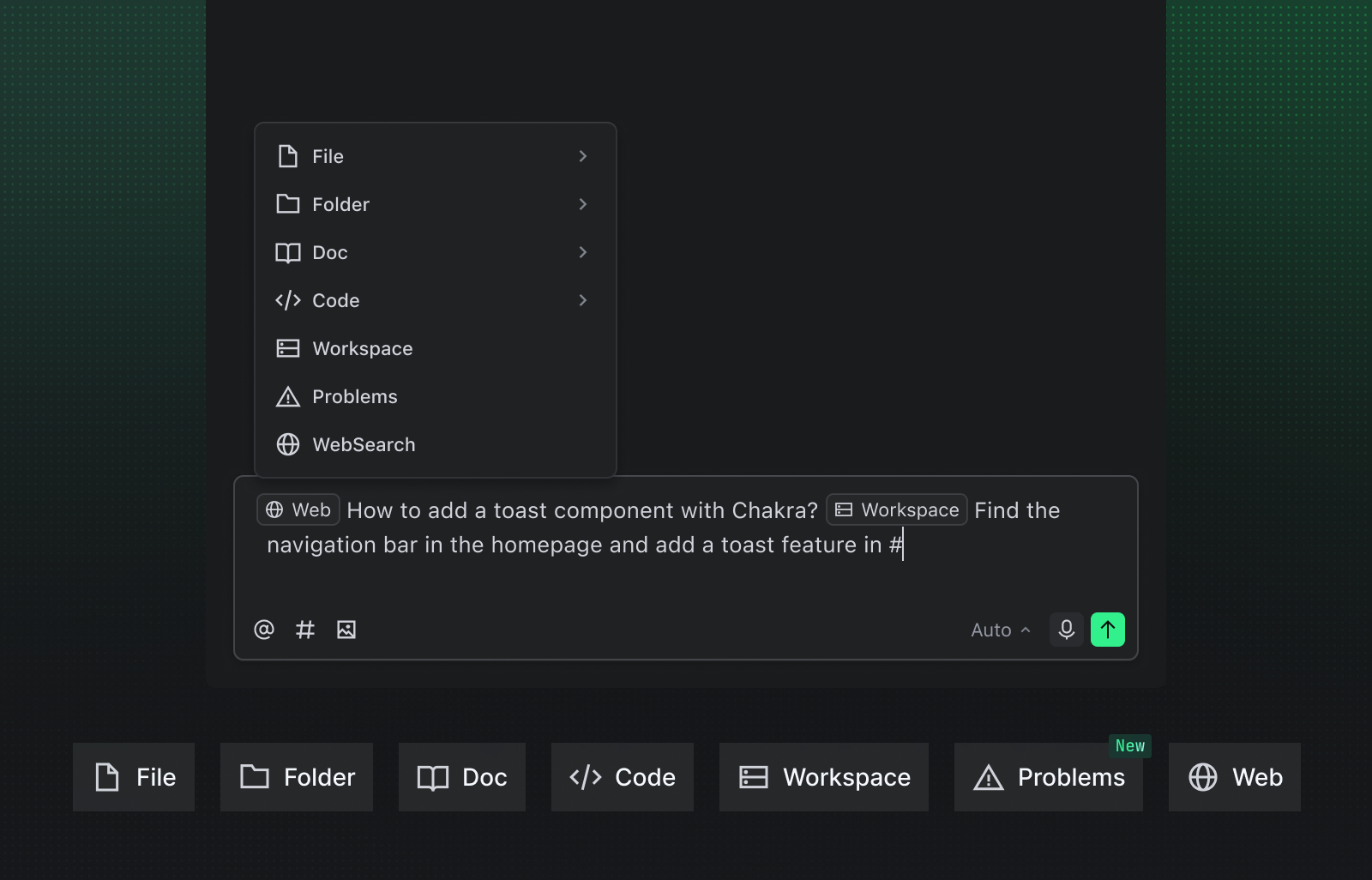
| Apply Manually | Only when you attach it to a message with # |
Always Apply is the right choice for a handful of lines that matter everywhere. Everything else is better scoped: a rule about SQL has no business in a request about CSS.
Best practices
- Keep each rule short and about one thing. "Use pnpm, never npm" is a rule. A page of history is not.
- Say what to do, not only what not to do. "Format dates as YYYY-MM-DD" helps more than "don't use American dates".
- Scope everything that is not universal. Specific Files or Intelligently keeps requests short and answers sharp.
- Put the project's rules in the project. Then they travel with the code, and nobody has to set them up again.
- Let the agent help. Ask it to add a rule after it learned something about your project; the rule appears in the open Rules list within a few seconds, where you can read, change or delete it.
Rules, profile and memory
Rules are instructions. Two other things work beside them:
- Your profile (Settings → Account → Profile) holds the name Lume calls you by and what it should know about you, the same on every device you sign in on.
- Memory is what Lume remembers about you and your work as you go. A line under the answer says what it saved, with Forget. A memory is background, never an order.
Rules cannot carry hidden instructions: characters that draw nothing on screen are left out before the agent reads a rule, and Settings → Rules says how many were left out.