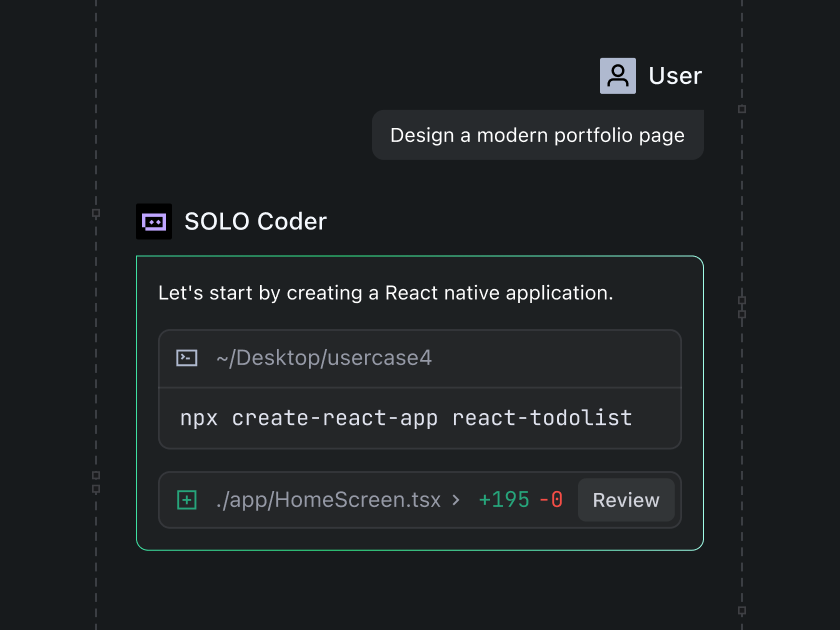
Most of the day you write code and the agent helps. Some tasks are the other way round: you know what you want, and following every keystroke would only slow you down. For those, Lume IDE has SOLO mode.
Two layouts, one project
Lume IDE has two layouts over the same engine:
- IDE mode puts the editor first and the agent in a side panel. You drive, the agent assists.
- SOLO mode puts the task first, with its own tool panels around the conversation: Doc, Terminal, Preview, Diff, History, and integrations. The agent drives; you define the goal and review the result.
Switch with the IDE | SOLO switch at the top left of the window, or with Ctrl+Alt+\. Nothing moves between them: it is the same project, the same conversation history and the same agent, so you can start a task in one and finish it in the other.
Your first task in SOLO
- Open the project. File → Open Folder, and pick the folder that holds your
.git. - Switch to SOLO with
Ctrl+Alt+\. - Say what you want, and what done looks like. "Add a dark theme to the settings page; done is a switch that remembers its choice and a passing build." A clear finish line lets the agent check its own work.
- Let it work. Each step shows as one line, "Read README.md", "Ran npm test", and a group of steps counts what was done. Open a line to see the step itself. Commands run by the approval mode you chose, and a destructive command always asks.
- Review. The Diff panel shows every change; for a web app, the Preview panel shows the page. Accept what you want, ask for changes in the same conversation, and commit from Source Control.
Ctrl+Alt+T shows or hides your tasks, and Ctrl+Alt+N starts a new one.
When to use which
SOLO suits larger, self-contained tasks: a new feature end to end, the same change across many files, a migration. IDE mode suits incremental work in code you know well, where you want to see every line land. There is no wrong choice, and switching costs nothing.
For a task you want to run beside the editor rather than inside it, there is also the Agent window: Agent ↗, right beside the switch.
More in the docs: What is Lume? and Quickstart.